Get the most out of the new healthyfood.com
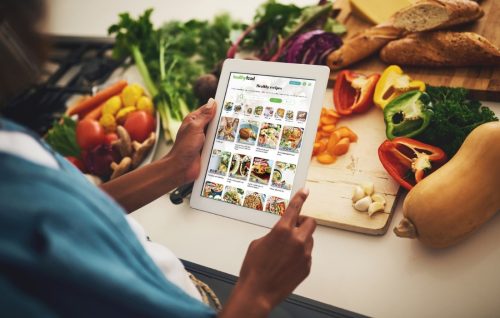
The Healthy Food Guide team have been busy reimagining healthyfood.com to make your go-to site for evidence-based nutrition advice and healthy recipes easier to use and more personalised. We’re very excited to share the brand new healthyfood.com with you!
Everything you love is still here: the accurate, science-based advice, the expert nutrition guidance and the 5300+ dietitian-approved recipes you can trust are good for you. What’s changed is how it all works for you. Have a look around and you’ll spot plenty that’s new. To help you settle in, here are 10 things worth trying first.
1. Set up your dietary preferences first
The new healthyfood.com is built around you — but it needs to know a little about you first. From the menu on the right, head to Your Dashboard and take the personalisation quiz to set your dietary preferences and your preferred content topics. Your Dashboard will then refresh with recipe, article and news recommendations based on your settings so every time you log in, you’ll see new recommendations on Your Dashboard tailored to you.
2. Explore your personalised dashboard
Once you’ve completed the quiz, your Dashboard is where everything comes together. You’ll see recipe and article recommendations picked just for you based on your answers — so it gets more useful the more you engage with the site. It’s also where you’ll find your Favourites (all your saved recipes, articles and shopping lists in one spot), quick links back to anything you’ve recently looked at and easy access to your account and membership details.
If you’re a Premium member, you’ll also see links to the Meal Plan Builder and your Digital Magazine issues in the menu on the left. And when you want to head back out and explore the rest of the site, just hit the ‘Home’ button to return to the healthyfood.com homepage.
3. Try the new smarter search
You no longer need to search by keywords alone. The new healthyfood.com lets you search in plain language — the same way you’d ask a friend. Try searching “dinners with no onion”, “high-protein breakfasts without eggs” or “what to eat to lower cholesterol” and the site will find the most relevant recipes and articles for you. It’s one of the biggest improvements to the site and worth exploring.
4. Build your weekly meal plan (Premium members)
Premium members can use the Meal Plan Builder to take the effort out of planning what to eat. Choose from 15 meal plan styles, select how many days you want to cover (up to seven), and the site will build a complete meal plan from our library of 5300+ dietitian-approved recipes. You can swap out any recipe that doesn’t suit you and save your finished plan to your favourites to come back to whenever you need it.
5. Find recipes faster with filters and nutrition badges
On the main recipes page, use the filter options to narrow down recipes by meal type, ingredient, dietary requirement or health goal. You can also look for our colour-coded nutrition badges, such as vegetarian, high protein or gluten free, on individual recipe pages and click any badge to browse all recipes of that type. Within any recipe, you can also switch between metric and imperial measurements by clicking the ‘Units’ toggle in the ingredients section. You can know also change the number of serves of each recipe, making it easy to adjust your ingredients quantities by selecting the number of serves you want.
6. Save your favourites
You can save any recipe, article or meal plan to your favourites for easy access later.
- Click the ‘Save to favs’ icon on any recipe or piece of content
- Give your favourites list a name so you can organise them and add more over time
- Access your saved favourites anytime by clicking on the “See favs” button on the recipe, or from Your dashboard screen found in the main menu.
Your saved Meal Plan Builder plans also appear in your Favourites, so everything you want to come back to is in one place.
7. Try the Dinner in a Dash tool for quick dinner recommendations
Got something in the fridge you need to use up and need some dinner ideas fast? Using the Dinner in a Dash tool from the home or recipes page, type in the ingredients you have on hand and how much time you have and we’ll serve you up some quick dinner recipes using one or more of your ingredients, making dinnertime a breeze.
8. Access Healthy Food Guide digital issues (Premium members)
Premium members have unlimited access to the complete digital archive of Healthy Food Guide magazine – every past issue plus new issues as they’re published. Click on Digital magazines in the menu, select the issue you’d like to read and use the green ‘Read Issue’ button to open it. You can flip through pages just as you would a print magazine and return to the full archive at any time.
9. Don’t forget to add healthyfood.com to your mobile home screen
Get easy access to healthyfood.com right from the home screen of your phone or tablet.
iOS/Apple: Open healthyfood.com in Safari, tap the Share icon and select ‘Add to Home Screen’
Android: Open healthyfood.com in Chrome, tap the Menu icon (three dots) and select ‘Add to Home Screen’
10. Stay logged in
There’s no need to log out when you close the site. Simply close your browser or navigate elsewhere and the next time you open healthyfood.com – including from any link in our emails – you’ll already be logged in and ready to go.
Not yet a member? Join the healthyfood.com community today.
www.healthyfood.com
 Achieve your goals
Unlock your ultimate healthy eating toolkit
Get instant access to everything you need to plan, shop and eat well in one place.